SimpleOTIS WordPress Plugin
The SimpleOTIS plugin is a custom WordPress plugin developed for Travel Oregon by tenBridges.com that allows anyone with an OTIS account to quickly add listings from the OTIS platform to pages or posts on your website. This is accomplished by first generating a custom WordPress shortcode in the plugin admin and then copying and pasting it into the page or post.
That’s it, really. It might take longer to read these instructions than to get the plugin up and running!
No extra programming or theme manipulation is necessary, although we provide custom CSS classes if you'd like to apply some custom styles.
Prerequisites
For SimpleOTIS to work, the permalink structure of your site must be set to "post name." Apply this setting in the settings/permalinks admin menu.
WP-ADMIN —> Settings → Permalinks → “Post Name”
Getting Started (From Wordpress)
The SimpleOTIS plugin works by placing a shortcode in either a listing page/post or a detail page/post
After installing the plugin, you must add one or more pages or posts in the WP Admin. The shortcodes generated in the SimpleOTIS admin can then be inserted into the page or post. We recommend using pages instead of posts, as pages are easier to customize in the WordPress admin.
If using a "list" page and a "detail" page (which we recommend), make sure to exclude the detail page from your site's navigation, since all items in the list page link to the same detail page, and the page's details are filled in dynamically by the detail shortcode, based on query parameters passed to the page's address.
Follow the directions below to start using the plugin.
1) Download, Install, and Activate SimpleOTIS plugin
The SimpleOTIS plugin source code is hosted in this repository. To install it, you must first download the .zip file by clicking the green "Code" button at the link, and then clicking the "Download ZIP" button in the popup menu.
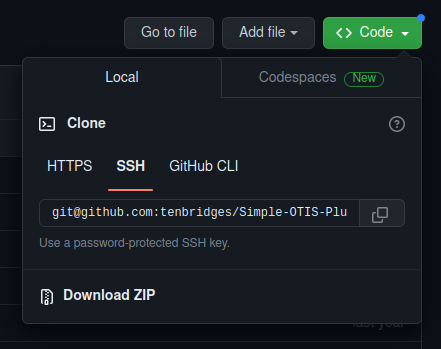
Then, sign into your Wordpress admin, navigate to the Plugins page, and click "Add New." This plugin also requires the installation of the leaflet-map plugin, which is available here and can also be found by searching for plugins from the WP Admin plugins page.

Click the "Upload Plugin" button and find the SimpleOTIS plugin wherever your downloads are stored to upload it to your Wordpress installation.

When this is done, navigate back to the plugins page. The SimpleOTIS plugin has one dependency (Leaflet Map). You will not be able to activate SimpleOTIS without first installing and activating the Leaflet Map plugin. After Leaflet Map is activated, click "Activate" next to the SimpleOTIS plugin.
2) Configure Filtersets in the OTIS UI for use in the plugin
In order to use the plugin in your wordpress site, you must first create a filterset in the OTIS Listings page SimpleOTIS and make it “public”. For more information on filtersets, including what they are and how to create them, see the OTIS documentation on filtersets.
3) Configure SimpleOTIS plugin options
The next step in configuring the plugin is to provide credentials in the plugin admin. Navigate to the SimpleOTIS plugin using the left nav bar in the WordPress admin.
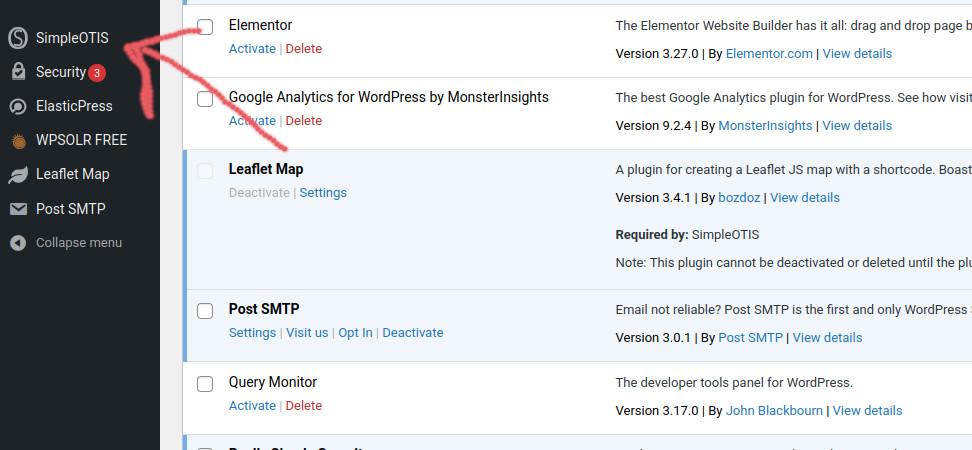
The SimpleOTIS plugin requires your OTIS username and password. Enter them in the login screen. The OTIS user must be the same one used to create the filtersets in the OTIS application.
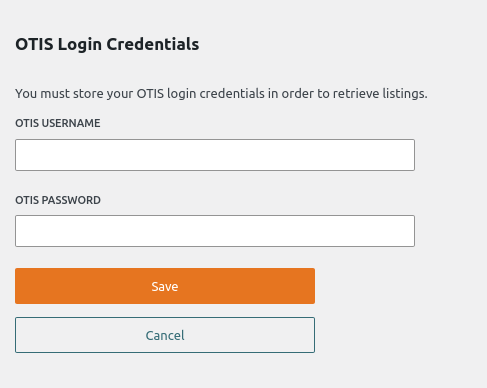
Listing Page Configuration
If your credentials are correct, you will see your filtersets in the admin menu.
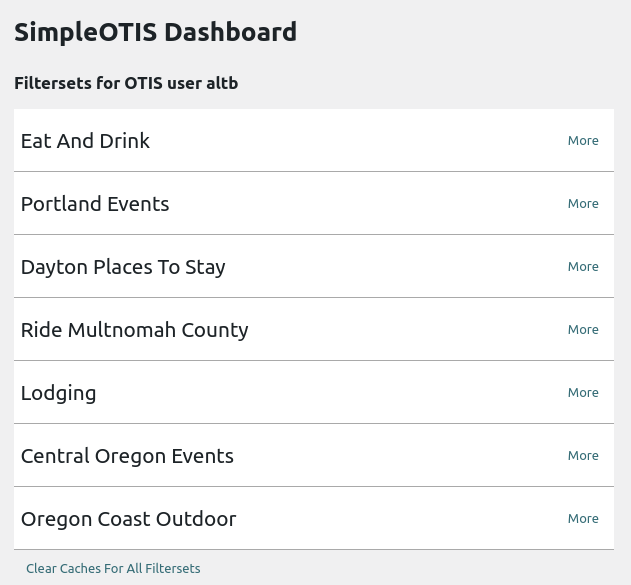
Click the "More" button of a filterset to expand it and see its details.
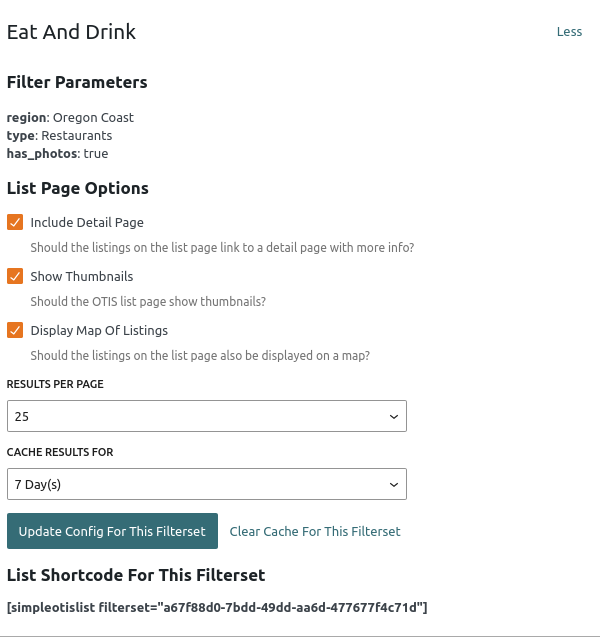
Here you can configure a number of options for the list shortcode:
- Whether entries in the list page display a thumbnail with the listing info
- Whether the entries link to a detail page or to the listing's website (default)
- Number of listings to show in the list page before pagination
- Whether to display a map of the page's listings at the bottom
- How long to cache the results of a search.
These options are stored in the Wordpress options table, and retrieved when the shortcode for the filterset is evaluated. Click "Update Config For This Filterset" to save changes. By default, SimpleOTIS caches the results of the first page of OTIS queries for 7 days. You may clear the cache by clicking "Clear Cache For This Filterset" in the filterset menu.
Detail Page Configuration
The Detail page is configured using the following menu:
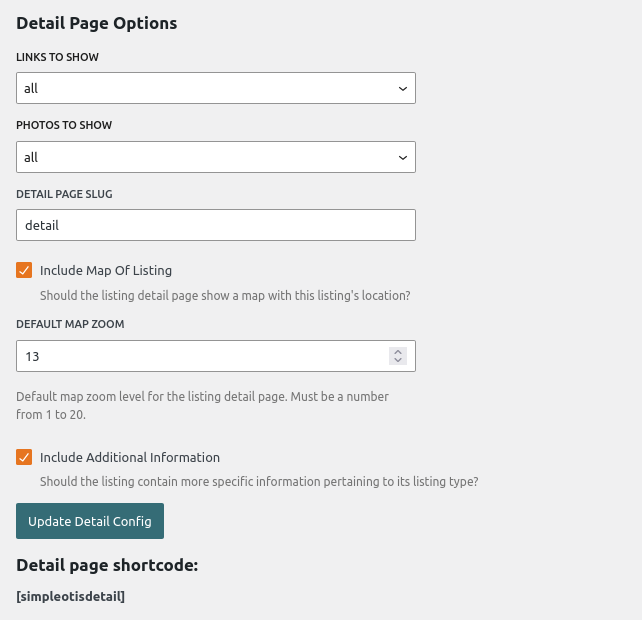
Here you can configure a number of options for the detail shortcode:
- Which links to display
- Which photos to display
- Custom slug for the detail page
- Whether to include map of the listing at the bottom of the detail page
- Whether to include additional listing information
- Default zoom level of map, if included
Click "Update Detail Config" to save changes.
4) Create WordPress pages and place the SimpleOTIS shortcodes in them
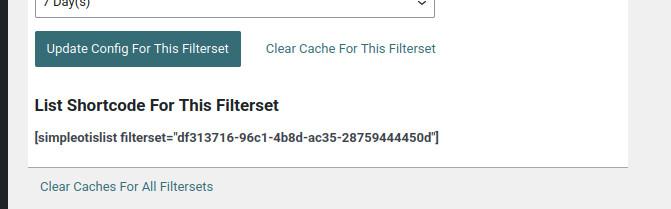
The list page shortcode for a given filterset is displayed at the bottom of that filterset's config menu. The only parameter passed to the list shortcode is the filterset's UUID. There are no parameters passed to the detail page shortcode.
Paste the “simpleotislist” shortcode into a shortcode block on the page you created to show the listings for the filterset. For example if you create a page called Events and you have a filterset that returns OTIS Events and Deals then go to the Events page in the WP admin section and add the shortcode for the “Events and Deals” filterset.
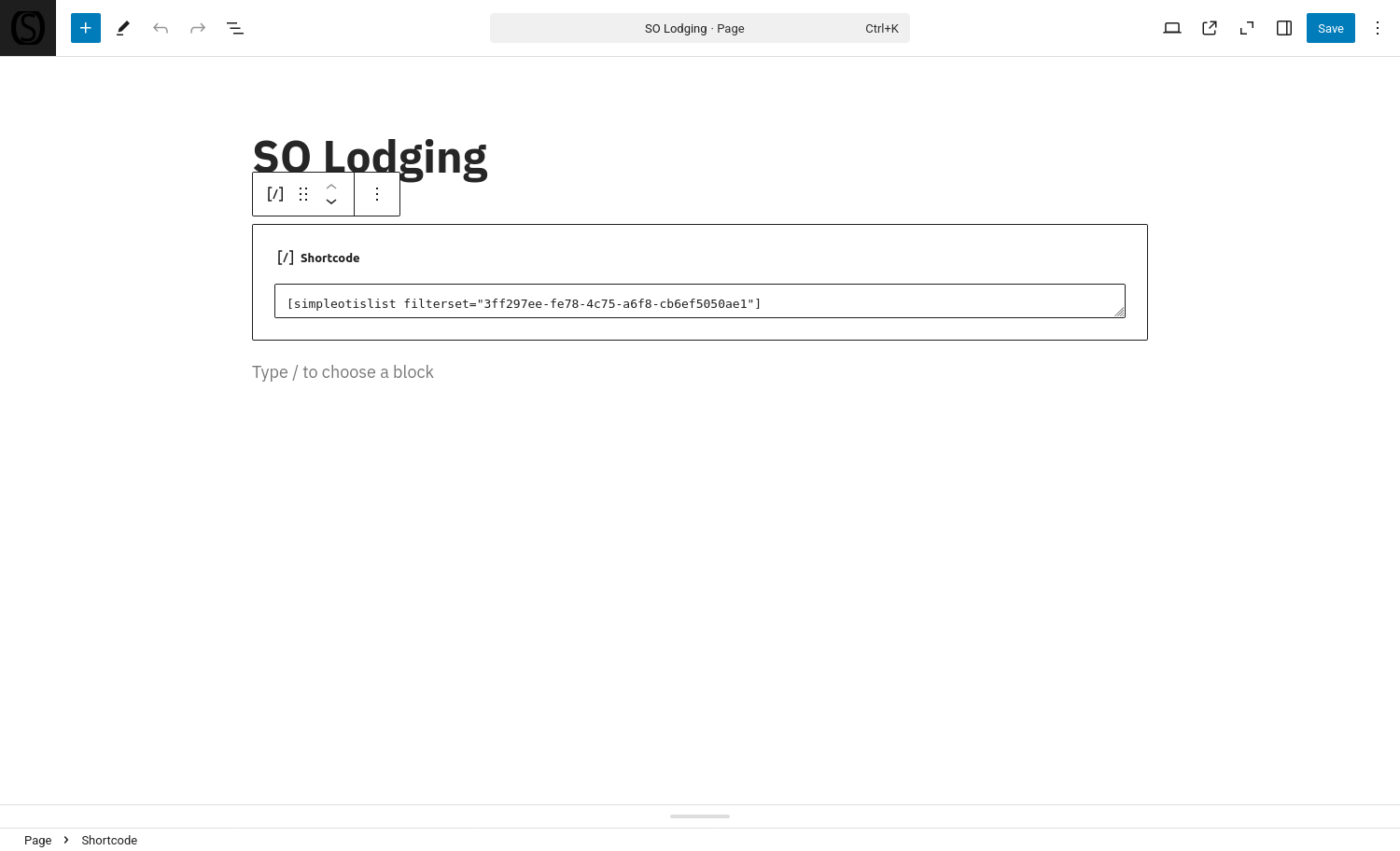
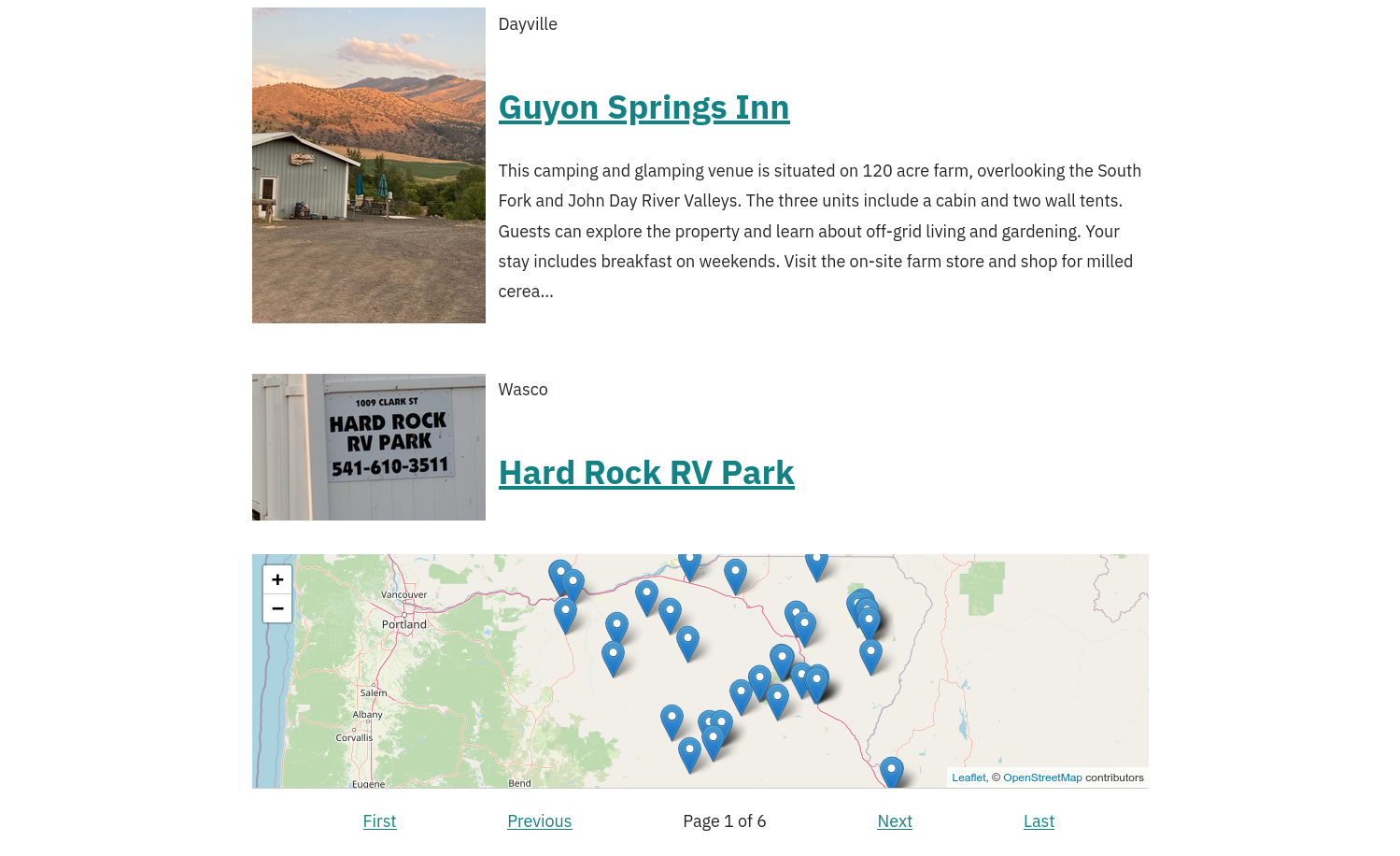
If using a detail page, paste the “simpleotisdetail” shortcode to that page and test that the links on the list page work properly. The plugin uses only one detail page. The page will dynamically return the information for each listing that is linked.
If you choose to use a detail page for this filterset (see configuration above) then you will need to create a new "PAGE" in the WP admin.
This page will connect to the SimpleOTIS plugin only if you add the pages slug to the detail config in the SimpleOTIS admin.
- Must have a URL that matches the DETAIL PAGE SLUG from the SimpleOTIS detail config
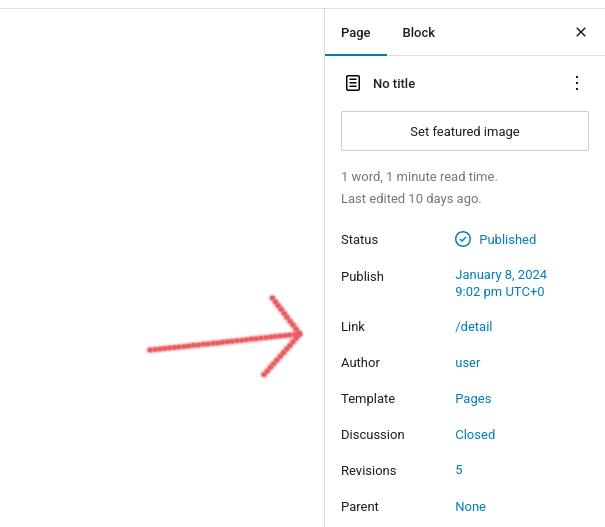
Keeping Detail Page Out Of Navigation
By default, on most WP themes, all pages you create will be included in the site's main navigation. You will need to remove the page from the Navigation menu(s) depending on how your selected WP theme manages menus.